Deutsch
 English

Zotero is an independent open source project with an active community of users and developers. Many users share their experiences online and we would like to share some of these tips with you here.
If you know a few tricks that you would like to share with us, please feel free to contact us.
Are you interested in becoming part of the Zotero community? Then you can find more information here.
There is also a room in the TU Clausthal Messenger where you can exchange ideas about Zotero.
Here are our collected tips and tricks in loose succession:
In these tweets, Mushtaq Bilal explains how the two apps Zotero and Research Rabbit can be used together to advance your literature research:
With the release of version 6, Zotero has introduced a new editor for notes. A detailed blog post about this can be found on the Zotero website.
Mushtaq Bilal has created a comprehensive thread explaining what this editor can be used for:
A relatively new feature of Zotero is the possibility to insert mathematical formulas directly into the notes of Zotero. This tweet shows how it works:
New in Zotero 6.0.14: Add formatted math directly to your notes using LaTeX math pic.twitter.com/v9sBNLCm6M
- Zotero (@zotero) September 29, 2022
Have you already created projects with Citavi and would now like to import them into Zotero? Nuremberg Institute of Technology has created a helpful pdf here.
If you would like to synchronize your data but prefer to use the TU server instead of the Zotero server, you can do this using WebDAV. Proceed as follows:
Open Zotero and go to "Settings" in the Edit tab. Now select the "Sync" tab. Log in with your Zotero user name and password. Now select WebDAV under File synchronization "Synchronize file attachments in my library with". The following URL must be entered: tucloud.tu-clausthal.de/remote.php/dav/files/IHR NUTZERKÜRZEL/
Then enter your data center abbreviation and password.
Finally, click on "Check server". The synchronization should now be set up.
If you want to import a PDF into Zotero without entering the associated metadata by hand, you can simply drag and drop this PDF into the center column of your Zotero project. The corresponding metadata will be added automatically. Please do not forget to check this metadata for correctness and completeness!
You can search for patents on the following sites and integrate them directly using the Zotero Connector:
- DEPATISnet for German patents
- Espacenet for European patents
- Google Patents for international patents
A symbol appears in the browser that directly recognizes and identifies the medium as a patent.
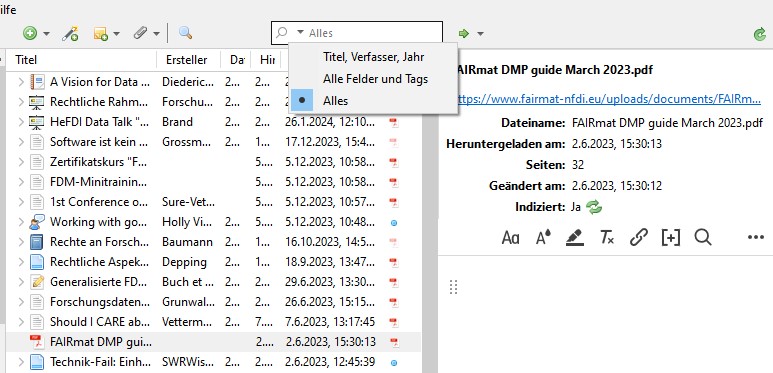
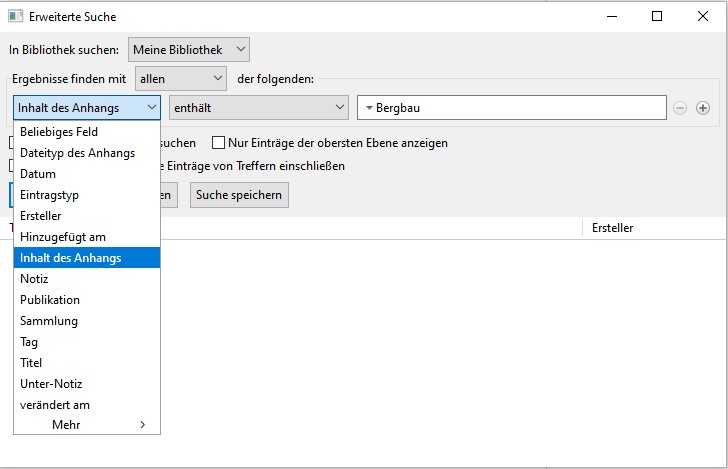

Zotero automatically indexes the PDF attached to the entries if their formatting allows it.
Full-text PDF indexing makes it possible to search embedded text in PDFs using the quick search (via the "All" option) and the advanced search (via "Content of attachment"). Indexing is performed automatically in the background when Zotero is inactive.
The titles that contain the searched word are displayed in black, while the corresponding entries that do not contain the hit are grayed out.
Note: Currently, only PDF full text content (and plain text files) can be indexed by Zotero. Other document types (e.g. .docx, .odt, .epub) cannot be indexed by Zotero.
(Please click on images to enlarge)